
Accessing Your EHR
I’m a person connecting into your practice’s systems—not a rotating cast, not a mystery desk in the cloud. Before any chart work starts, your IT team and I agree on a simple, practice-controlled setup: one fixed address, your approved access method, my own least-privilege account, and your written OK.
Think of it as a front door with a guest list. Your practice keeps the keys. I knock from the same address every time.
Free 30-minute call. No patient information needed.
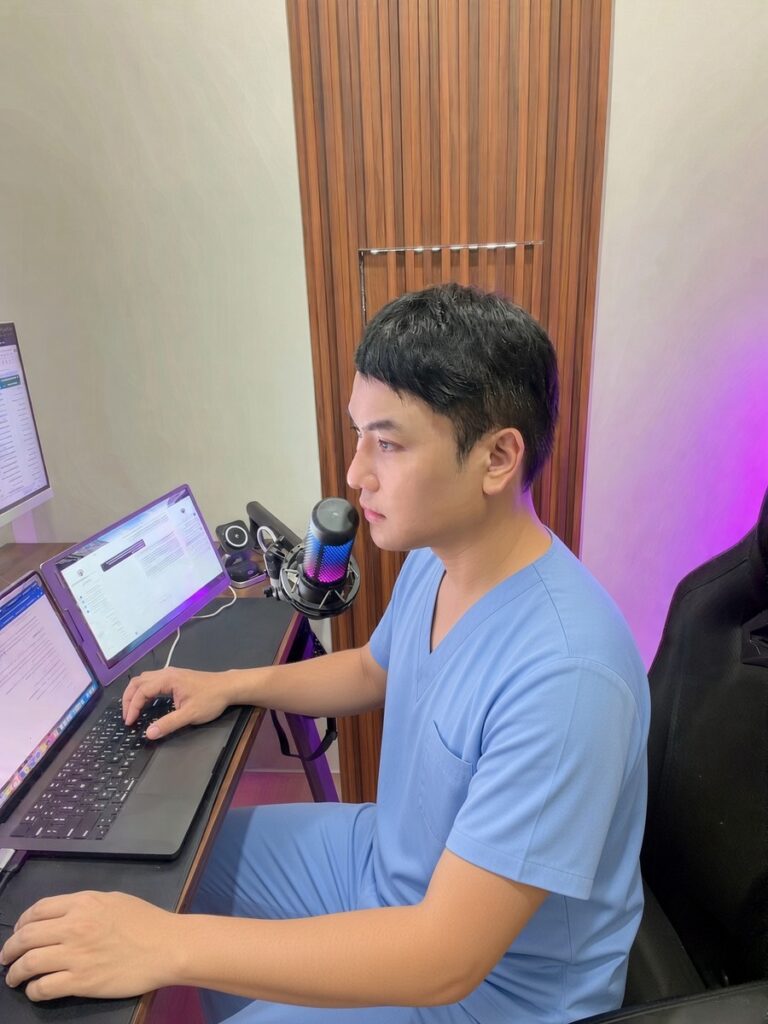
Work Happens at a Real Desk—On your Allowlist
I connect from my fixed U.S. workstation into systems your IT approves. One address, least privilege, your 2FA chart prep without a mystery machine.
The Short Version, Step by Step
1. One Fixed US Static IP—Mine Only
I connect only from my own fixed, dedicated US static IP address. It isn’t shared with other people, and it doesn’t hop around. Your IT team can treat it like a known guest on the list.
2. Your Team Allowlists that One IP
Practice IT allowlists that single IP so the EHR or network accepts connections only from it. If the address isn’t on the list, the door stays closed. No scavenger hunt through a pile of changing addresses.
3. You Choose the Access Method
Access uses the practice’s own approved method: a direct EHR login, or a remote-access tool your IT already approves (for example, RemotePC—or whatever you already use). The practice chooses. I work inside your rules, not around them.
4. Windows When you Need it
If the practice requires a Windows environment, I can work from a dedicated Windows workstation on that same fixed IP. Same address. Same allowlist. Fewer “which machine is this?” questions for your IT ticket queue.
5. My Own Account, Least Privilege, your 2FA
The practice creates my own user account with only the access needed (least privilege). Logins use the practice’s two-factor authentication. You can review or revoke access anytime. If the guest pass expires, the visit ends—clean and simple.
6. Paperwork before any Patient Records
A signed Business Associate Agreement (BAA) and the practice’s written OK for remote access come before any patient records are touched. No charts until those are in place. The sticky notes can wait; the BAA cannot.
7. Separate Setup Per Practice
Each client gets its own separate IP setup, so practices are kept apart. Your allowlist is yours. Another practice’s setup is not mixed into yours.
Checklist for your IT Team
- Confirm my dedicated US static IP for allowlisting (one address, fixed not shared, not rotating).
- Allowlist that IP on the EHR and/or network path you use for remote chart access.
- Choose the access method: direct EHR login, or your approved remote-access tool (e.g., RemotePC or whatever you already use).
- If Windows is required, plan for my dedicated Windows workstation on that same fixed IP.
- Create my individual user account with least privilege only the access needed for agreed chart-prep work.
- Require the practice’s two-factor authentication on that account.
- Confirm who can review or revoke my access, and how.
- Complete a signed BAA and the practice’s written OK for remote access before any patient records are touched.
- Keep this practice’s IP setup separate from any other client’s setup.
A Clear Lane
I’m a registered nurse supporting authorized U.S. providers remotely. Chart preparation stays preparation: your authorized provider reviews and decides. This page explains how remote access is set up—not a guarantee about any regulation, certification, or outcome.
Questions IT and Practice Managers Usually Ask
Who connects—software, or a person?
A person. I connect to your practice’s EHR as an individual remote chart prep nurse, from my fixed setup, under an account you control.
Do you use shared or changing IP addresses?
No. I connect only from my own fixed, dedicated US static IP. Practice IT allowlists that one address.
Who picks the remote-access tool?
Your practice does. Access uses your approved method—direct EHR login, or a remote-access tool your IT already approves (for example, RemotePC, or whatever you already use).
Can we limit and revoke what you can reach?
Yes. The practice creates my own user account with only the access needed (least privilege). Logins use your two-factor authentication. You can review or revoke access anytime.
When do patient records become involved?
Only after a signed Business Associate Agreement (BAA) and the practice’s written OK for remote access. Not before.
Want Your IT Team to Walk Through This With Me?
If the steps above match how your practice likes to work or you want to compare them to your current remote-access checklist we can talk through scope and setup on a general business call.
Do not send patient names, charts, or screenshots in an initial inquiry.
